Search This Blog

Showing posts with label educational technology. Show all posts

Tuesday, February 18, 2014

More Free iPad Apps: Pocket Law Firm, History Maps, Think Fast, and Undecided


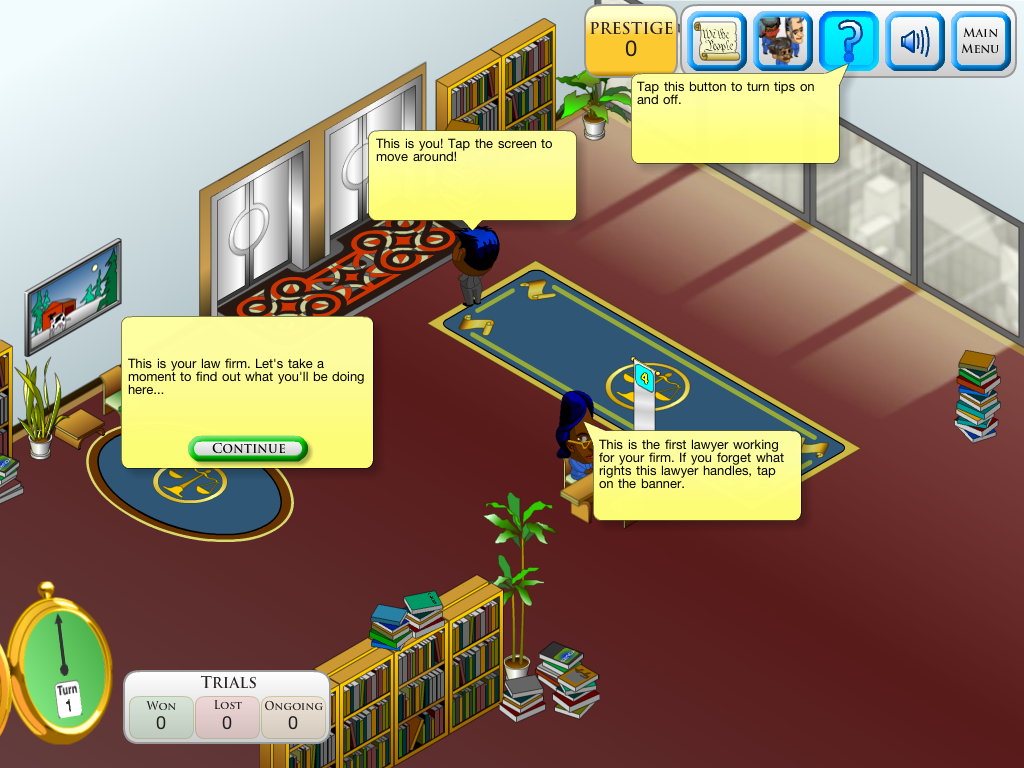
Pocket Law Firm is excellent for practicing reading comprehension and learning the basics of constitutional law. Player may refer to the constitutional amendment cheat sheet as many times as necessary to play the game, but this repetition will eventually help students memorize the amendments as they apply them to cases. The object of the game is to match potential clients with lawyers who specialize in certain amendments. When a person enters the law office, the player must tap on the character and read the person's story, then determine whether this merits legal action. If the client has a constitutional right to take the case to court, the player finds the appropriate lawyer to take the case. As the lawyers win cases, Prestige points add up, allowing the player to buy additional lawyers and office furniture that makes the clients more likely to wait patiently to speak to someone. Clients will not wait forever, so part of the challenge is to attend everyone in a timely manner.
Update: I used this in my classes with great success. Before the students used the app, I asked them to list any constitutional amendments or constitutional rights they remember learning in their history class. The responses were less than what I had expected. After playing the game for about 30 minutes, I asked the students to add to their written list, and they recalled at least five additional amendments they did not know (or remember) at the beginning of class. They have been asking to use this app every day since.


The History Maps app incorporates history and geography. I plan to use this app as a starting point for online research; students can find maps of the tallest buildings from the end of the 19th century, for example, and research one of these structures. I prepared several questions that will challenge students to interpret visual information from the maps.
Think Fast is another app for both ELA and Social Studies. Players choose a character that moves along a route in Boston as they correctly answer questions about American history.
I needed a versatile, free app for choosing students for our debate. Finding electronic spinners was more difficult than I had anticipated, but here's the perfect app: Undecided. Roll dice, flip a coin, spin the wheel, draw straws, or generate a random number (and if those aren't enough, buy the digital rock, paper, scissors function).


Monday, November 25, 2013

Subtext iPad App: Share, Annotate, and Discuss Texts with Students Instantly

Before writing a review of an app, I usually withhold my verdict until my students have used it. This time, I cannot wait to write a pre-emptive review of Subtext, another free app that will enhance students' interaction with texts through annotations and class discussions. Learning how this app work takes some time, at least it took me a while to navigate through the features, but once I discovered how to choose a text, create groups, and share the texts and assignments with students, I was inspired to think about its application in my class.

The first step to creating an assignment in Subtext is to choose the text. Using "Tap to add books & articles," I found an article through our school's links to reliable sources and then added the page to the app library. Then I created a group (I could have done this first) for one of my classes. I shared the article with this group and then shared with them an assignment that instructs them to highlight and discuss details that support the main idea.
At first glance, this app seems to be a great enhancement to text annotations and group discussions. I will post my reviews after using this with my students.

Note: The features for annotation are similar to Nook and Kindle apps.
Have you used this app with your students? Leave a comment with examples or suggestions!

Thursday, October 24, 2013

Make Beliefs Comix


UPDATE: Make Beliefs Comix is now available as an iPad app.
Teachers who like using innovative and free tools to help students with writing should check out this free site: Make Beliefs Comix. Within a few minutes of making a comic strip of my own, I thought of a dozen possibilities for the classroom. My students began by illustrating an important scene from their novels. Once they understood how to apply the features of this online tool, I asked them to create a comic with dialogue that included our four vocabulary words. When they finish a comic, I help them edit and revise the writing, and then they email the final draft to me. When I open these from my inbox, I print them out and give them to the students to save in their writing folders. Even though the size of the comic strip limits the amount of writing, this is a perfect opportunity to help students focus on their mechanical and usage errors. By reading the dialogue in my students' comics, I could immediately see which students did not understand the meaning of our vocabulary words. I also pinpointed many common errors that my students should not be making in eighth and ninth grade: not capitalizing the beginning of sentences or the personal pronoun I and forgetting to end each sentence with punctuation. They have to make all these corrections before they email the final draft. I continue to think of new uses for MakeBeliefComix. The examples below are student work that illustrate a conversation in which one character does not make an important inference.


Monday, April 22, 2013

More free iPad eduational apps

Five educational apps recently caught my attention. Three are by McGraw-Hill: Grammar Wonderland 1, Grammar Wonderland 2, and Word Wonderland. Two are from exploratoriaum.edu: Sound Uncovered and Color Uncovered. All five apps require students to read and interact with the app, and they should hold students' attention.
McGraw-Hill Wonderlands


Word Wonderland challenges players to match phonetic sounds with words (such as matching "shop" with short "o."). The title "Wonderland" refers to the maps students move along in different worlds. If you are teaching students phonetic spelling strategies by using a program like Reading Horizons, for example, this would be a fun review activity.
Word Wonderland

The Grammar Wonderlands are similar--players choose a character and world, and as they win each level, by flying a plane into plural nouns or feeding a polar bear the common noun, etc., they progress across a map. These games are obviously aimed at young readers, but with older students who struggle with reading and writing, this would be a fun review of basic grammar.

Exploratorium
The Exploratorium is "an interactive museum of science, art, and perception located in San Francisco." Their brilliant apps are educational for any age. One of my favorite Sound Uncovered interactive articles is "How Old are Your Ears," which allows students to measure their hearing on a sliding scale and then encourages them to read more about how loud music and age contribute to hearing loss. Color Uncovered also has several dazzling optical illusions and surprising facts.


Friday, April 5, 2013

Favorite Free iPad Educational Apps

It's been much longer than I had realized--about a year--since I posted my first review of free educational apps. Since then, I've sorted through dozens of others, mostly word games, that are entertaining enough to keep even my attention. I'm not even close to being what my students call a "gamer"; the only video game I could ever master was Nintendo 64 Mario Kart, which I still play on occasion. I think this is why I'm picky about which educational games I download. Some are inane or require such little brain activity it can't keep my attention for more than a minute. Also, I don't know if I'm not very savvy at searching online for educational apps, but I have yet to find a blog by a teacher with entertaining educational apps that are really free--I know about Evernote, Lino, etc. by now, thank you very much--can you tell me something new?
Each of these apps requires spelling, reading, or listening, and each has proven to hold my students' attention for at least half an hour. Here they are, from least to most popular with my students (according to their preferences, not mine).

#7: My personal favorite is Word Jewels! and all its variations (Word Jewels 2, Word Jewels Spin, Word Jewels Rally). Time is unlimited, so while it exercises your spelling power, it doesn't leave you stressed. Players may spell words of three or more letters by connecting adjacent letters. I classify this game as fairly addictive.
#6: Word Gems is similar, but as a timed game, it's not as enjoyable, in my opinion. Rows of letters scroll toward you while the timer counts down from three minutes.
#5: Jumbled Sentences, available in six versions, has the appearance and sound (tinkly music and a child-like narration) of a kindergartener's game, but it's actually more challenging than you might expect. For students whose sight word recognition is a little slower than average, this game will definitely keep them occupied. Words rotate in a circle while the timer pushes the player to choose the correct words and place them in a sensible order below. A narrator reads each word as the player places it in the boxes, and when the sentence is complete, she reads the entire sentence. Try this game out, and you'll be surprised at the level of concentration it requires. One note of caution: This is British English, so you'll find the games use vocabulary that necessitates some explanation, such as the British word for "eraser" in Jumbled Sentences 6.

#4: Bussuu language apps are so engaging and effective, I still can't understand why they're free. ELL students could use the English bussuu app, but when I allowed my Spanish-speaking students to try the Italian app, they loved it! They understood the connections between these two Latin-based languages, a lesson that lends itself to developing English vocabulary with Latin roots. Illustrations and audio prompt quick learning, while quizzes and exercises strengthen long-term memory.


#3: The Cambridge Phrasal Verb Machine is the strangest, most British app I've seen to date. Its short, highly stylized animations illustrate the meanings of phrases that are difficult for learners of English. These artistic animations and the sophisticated soundtrack make it entertaining for anyone, though. It's unlike any other app.


#2: I wish more apps were as interactive as Futaba. My students quickly tire of any app, no matter how engaging it is at first, because many apps don't capitalize on that quality essential for any educational activity targeting teens: competition. Futaba pits two (or three or four, with upgrade) players against each other in a race against the clock to be the first to identify the spinning image and select the corresponding word. It's challenging not only for readers with slow sight word recognition, but even for the fastest readers.


#1: My students' favorite word apps are those with four images or an image-reveal. Find at least half a dozen of these apps by typing "word picture" in the iStore. These include 4 Pic 1 Word, What the Word? and What's the Pic?


 Leave your comments about your favorite free educational apps!

Thursday, May 24, 2012

Make Your Own Myth


As the end of the year was quickly approaching, I searched far and wide to find resources for a cumulative project that would require students to integrate the application of reading strategies, vocabulary development, and analysis of literary elements that we have been practicing since the beginning of the year. The project also had to fulfill another requirement, since we were entering the last two weeks of school: It had to allow students to be creative.

In my previous post, I described how Toontastic can be used to illustrate a short tale. After completing that project, I found another program that I probably will use in place of Toontastic because of its  infinite array of options.

The Myths and Legends site is one of those resources that I can scarcely believe I didn't know about before. It's so extensive that each time I use the site, I find something new. Teachers will find the site is adaptable for a range of lessons, but it works well for this project.

I began with a mini-lesson on motifs commonly found in fairy tales and medieval literature. Understanding these motifs, students can make predictions and identify themes. I read "The Marriage of Sir Gawain" aloud while students read the text on the iPad. (I posted a list of links for my students on Trackstar4teachers.org)

In assigned groups, students chose another tale from the list and read it aloud together, again using the iPads so they could define unknown words easily. Then they returned to the motifs chart and described the motifs that appeared in their story.

The final step required more re-reading than even I expected, and that's what I believe makes this a worthwhile project. Illustrating a tale using the site appears to be a simple task. Instead, I saw my students referring to the text and asking questions about the characters and events, and this was after they were quite sure they understood the story. This is when it became apparent to me and my students that their comprehension wasn't as lucid as we thought.

As with any new project, I realized I would need to make adjustments for next year but the advantages outweigh the few disadvantages.
Pros:
  • Using the iPads was an advantage for building vocabulary. Watching the students look up the words reminded me once again that I can never make assumptions about what words they know--they needed definitions for words that teachers would assume their students acquired in earlier years.
  • Students need to practice re-reading text to clarify meaning. This project requires them to return to the text multiple times and ask questions in order to complete the illustration correctly.
  • The students' work allows me to instantly check their comprehension: When several students placed a character indoors instead of in the garden, I immediately knew they had misread the description of the setting, and I was able to direct them back to the paragraph where they would find these details.
  • Each scene allows students to type a description of the events and add dialogue, and of course this is a perfect learning opportunity for improving style and mechanics.

Cons:
  • I need to find better ways to utilize the iPad for vocabulary; we didn't use this feature to its full potential, and this is an area I need to improve for next year.
  • If the options in Toontastic can distract students, the Myths and Legends program is absolutely mesmerizing. It's too easy for students to become absorbed with the sheer number of scenes, characters, objects, animations, and sounds that the site allows them to choose. My biggest mistake was not requiring students to have a clear outline of the events and captions before beginning their illustration. Even focused students found it difficult to illustrate the tale from beginning to end because they spent an inordinate amount of time looking through the pictures and improving each scene, and as a result, not everyone was able to present a completed product.

Please leave your comments about similar programs, or if you've used the site, how it has worked in your classroom.

Wednesday, March 28, 2012

Using Toontastic to Write Short Stories

Toontastic has surprised me with its potential to inspire students' narrative writing. Teaching writing is never an easy task, and any resources that will help me not only teach the process more effectively, but actually make it more enjoyable for students, is invaluable. Although I rarely ask students to write fictional stories because the pressure to prepare students for standardized tests demands that we focus on expository and narrative essay writing, I had to reconsider my approach after hearing children's author Matt Glover's presentation at the Arkansas Reading Recovery Conference in Hot Springs last October. Glover emphasized the importance of training students to have more independence in choosing topics and stressed that when students improve writing in any mode, such as creative writing, they will improve in the modes that are required on standardized tests as well. In other words, if students can practice the writing process and improve their writing style in short stories, we will see them improve in all their writing.

With this in mind, I asked students to brainstorm an idea for a short story using the Toontastic app, which allows them to choose a setting and characters or to create their own. After selecting a setting and characters, students begin recording their animation and their narration by moving the characters and telling the story. Most students choose not to record their voices, so instead, they will tell their story to the class when they present the completed animation. When they are satisfied with the animation of a scene, the app allows them to choose a music track that fits the mood of the scene (see Mood below). At this point, the scene is complete, and the students repeat the process to animate the next event. One of the advantages of Toontastic is that it moves students through a story arc, a visual representation of plot, including the rising action, climax, and resolution (see Interactive Story Arc below)

Mood
Interactive Story Arc

As students are planning their story, they complete the the plot chart I upload onto our class fusion page. This requires students to describe the setting, characters, conflict, mood, and events with great detail; they must also choose at least five words from their vocabulary folder that they will include in their writing.

This ensures that they are doing more than just animating the scenes or being too distracted by using the app's many intriguing options, such as changing the colors of characters or drawing an elaborate setting. I give students one class period to decide on the basic plot and characters, and then they must submit a completed plot chart and typed short story before making additional changes to their animation; otherwise, it is tempting to work on the animation indefinitely without doing any writing. 


When they have finished their Toontastic animation, they present their stories to the class, reading the story first, then showing the cartoon that can be projected onto a Smart board or Promethean board.

Completed Animation
Variations: Because students can create their own settings and characters, the possible variations of stories are endless. Teachers could ask students to re-tell a fairy tale or an alternative ending for a story they have read recently. Once students have written their stories, teachers could use this as an opportunity to focus on revising style.
Modifications: ESL and other students who need modifications will benefit from the app's clear visual representation of plot sequence. Students could be paired to create the animation and then write a story, with reduced requirements, independently.

Thursday, March 15, 2012

Word Game Apps


One of the advantages, and disadvantages, of using the newest technology in the classroom is that I am only one step ahead of my student's knowledge--and sometimes a step behind. My students often enter class enthusiastically asking me to download a certain app onto our iPads, but oftentimes, the apps are not ones we could justifiably use during class time (Angry Birds and Temple Run come to mind as prime examples).  We teachers who are lucky enough to have iPads should not despair, however; plenty of free apps are both entertaining and educational, able to keep students engaged for an entire class period.


At first I was skeptical: Would the word game apps I downloaded really fulfill the objective--to help students focus on vocabulary and spelling? I was pleased to find that the games achieve both of those goals, especially if students write or type a list of words they encountered as they used the apps. 


All of these apps seem to be equally interesting for students, although everyone tends to gravitate toward one favorite game or another. Words HD Free was the first word game app I introduced to the class. First semester, the students had so loved playing Scrabble (the "real" board game, not the virtual version), that I was sure they would be at least a little interested in Words Free, which is a nearly identical game. It was immensely popular, much more than I expected. One of my students told me, "This is the first time I've ever had fun with words!" What more could a teacher want to hear?


Letris 2 also interests students in spelling. The player can choose a one-player game, two-player split-screen, or online games. If playing solo, the students can choose Letris, Acronyms, or WordMatrix settings; if playing against other students, they can choose either Duel or Endurance. While this game pushes students to choose letters quickly to spell words accurately, I've noticed two disadvantages: The game seems to accept abbreviations of words, something that doesn't help teachers who are battling the proliferation of texting lingo in students' writing; and because the two-player split-screen game is fast paced, students are encouraged to spell shorter, usually three-letter words.

Word Solitaire is one of the more challenging word game apps, and I warned my students they would not enjoy playing unless they completed the tutorial. This game encourages students to spell longer words. Because it is more difficult, fewer students choose to play this app more than ten minutes, but a few students who normally struggle with writing were surprisingly successful with this app.

Word Warp Xtreme is the most popular app among students in my classes. I like that this game introduces students to new words and challenges them to discover these new words by spelling them from a restricted list of letters. They especially love the Head-2-Head setting, which allows two teams or players to compete simultaneously on their iPads using Bluetooth technology. Whirly Word is a similar single-player game that challenges students to spell words with a limited list of letters that are arranged in a circle.

There is no shortage of crossword apps, but some are better than others, such as Ultimate Word Search and Word Search+, because their word lists offer more challenging words than games such as Word Search Party.


Although it's hard for students to interrupt their games, I have asked students to post a list of new words and definitions on lino before the end of the class period. When they "accidentally" spell a word without realizing it was a word, I ask them to pause, open the Lino app, and post their word (and they can highlight and define the word at the same time in Lino). I have to remind them to do this, of course, because once they are involved in their game, they are not very keen about taking their focus away from winning.

My quest to find the best iPad apps continues, so I will post my reviews as I see which ones are the most successful with my students.

Wednesday, February 29, 2012

Recording students' reading using Audacity

Audacity allows students to record their speaking, and using the fusion page, they can upload the MP3 recordings for you to open.
1. Download the beta version of Audacity from http://audacity.sourceforge.net/download/beta_windows 
Select "run." This will take about two minutes.
2. From the same page, find "Optional Downloads" and look for the "LAME MP3 encoder." This will allow you convert the recorded files from Audacity into a file that can be uploaded to the fusion page. Without LAME, you won't be able to save the recordings as an MP3.
3. Continue to click on the links until you reach the page that looks like this, and then select "run."
4. Now open Audacity do a short test recording: Just click the red recording button and begin speaking.
5. Select File, Export and then find Libraries, My Music. From "Save As Type" select MP3 files.
6. To allow students to upload their audio files, create an assignment on the fusion page.
7. After students have submitted their files, they can be deleted from the "Libraries."
Variations: Students may record themselves individually, or as a group. I record the classes' reading of a scene from a play and played it back for them to hear; this allows us to have a discussion about how intonation and other speaking skills can be improved. Then we make another recording and assess the improvement of the second round. Using audio instead of video recording (which I also use) helps the students focus on listening to their fluency.

Monday, February 27, 2012

linoit.com

 
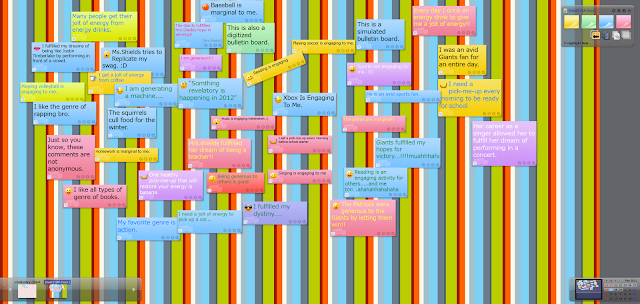
With thousands of apps available for the iPad, I've been overwhelmed by the task of finding which ones are actually useful for my class and are more educational than just entertaining. Linoit.com allows users to post comments on a canvas, and because it's interactive, students are engaged in writing the entire class period. I have used this to help students apply vocabulary, but lino could be used for a variety of activities. They may use lino from a laptop or via the iPad app.
Steps: 1. Sign up at linoit.com and create a group for each class period. 
Once you have created these groups, you will create a canvas with a name, such as "vocabulary." When you create this canvas, un-check "notify me when someone posted a sticky" or every post will show up in your email inbox.
If you are using iPads, you can also download the app.

2. This step will take the most time. Each student needs an account to post comments, and you must accept them as a member before they can post on their group's canvas. Their requests will appear on your lino account, and when you accept them, they can begin participating. 

3. Explain the objective and purpose for the comments they will post on the canvas. I post a few examples for them to follow, and I make the criteria clear so they stay on task. For example, to discourage students from posting irrelevant comments, I tell them that I will delete sentences without a word from our list. (Also, because it's possible to post photos and videos, I turn off the camera on their iPads.)

4. You can see who posted each comment, so this allows you to help them make corrections. In the photo above, several sentences have mechanical/usage errors. I can address these errors with the whole class or the student who posted the sentence, and they can edit their post to make the corrections. I also post similar sentences to give them additional examples if they don't understand how to use the word correctly.

Using the Promethean board makes this even more dynamic because you can move around and expand comments on the canvas if you want to draw students' attention to a post.
The benefit of using lino is that I can immediately see whether students can apply the vocabulary or if they need clarification about the definition or usage. I can also see who is actively participating and who needs more guidance. My students ask nearly every day when we will use lino next!

Differentiation: Students could work in pairs if they need additional help (scaffolding) to write. You can always post a sentence frame on the canvas to inspire better writing.

Variations: Brainstorming ideas for writing, quick-write responses to an article or short story. 
Please, let me know if you find other creative ways to use lino in your class!